Ergonomic Desk Setup: 10 Simple Adjustments for a More Comfortable Workday

Many people spend more hours at their desk than anywhere else except bed, yet the setup is often whatever happened to fit the room. A monitor that is too low or a chair at the wrong height adds up quickly, and by the end of the day it shows in your neck, shoulders and wrists.
An ergonomic desk setup does not require expensive furniture. Most of the improvements below come from small adjustments to things you already own, and you can work through the list in an afternoon. If you have ongoing pain, a professional assessment is always worth it alongside these general tips.
1. Raise the Monitor to Eye Level

The top of the screen should sit at or slightly below eye level when you sit up straight. When the monitor is too low, your head drifts forward and down for hours, which is one of the most common reasons for a stiff neck after a long day of work at home.
A monitor arm or riser is the simplest fix, but a sturdy stack of books works well as a free test. Tilt the screen back slightly so you look at the center with a gentle downward gaze. If you wear progressive lenses, you may need the screen a little lower than usual.
2. Keep the Screen About an Arm's Length Away
Sit back in your chair and stretch an arm forward: your fingertips should land roughly at the screen. This distance lets you see the whole display without turning your head and reduces eye strain, because your eyes do not have to work as hard to focus on something very close.
Larger monitors usually need to sit a little farther back. If text feels too small at that distance, increase the zoom or scaling in your operating system instead of leaning toward the screen. Leaning forward pulls your back away from the chair support and undoes the rest of the setup.
3. Set Your Chair Height So Your Feet Rest Flat
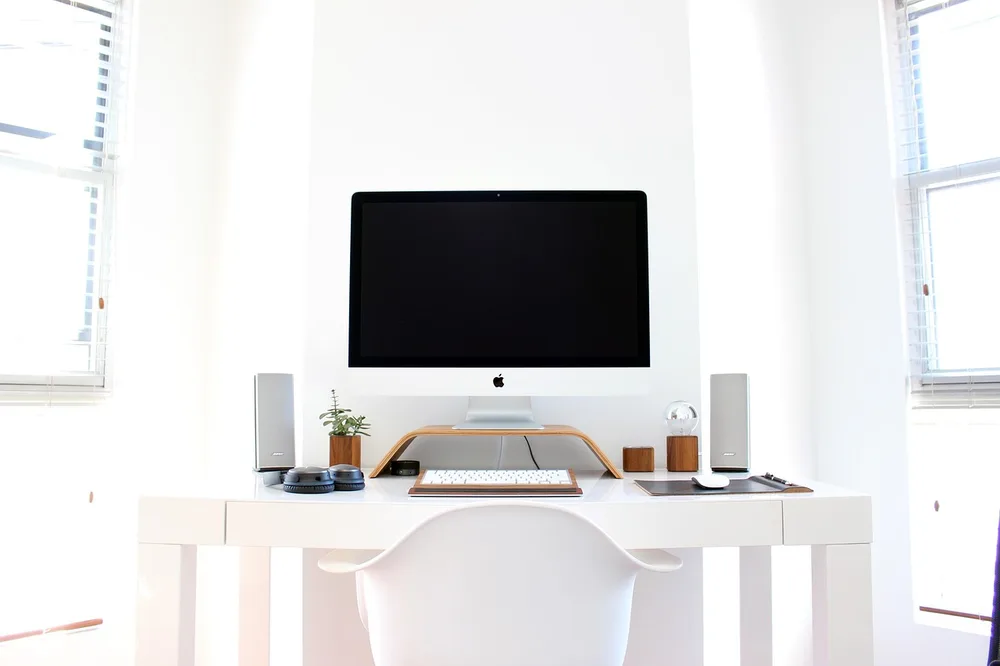
Adjust the chair so your feet rest flat on the floor and your knees sit at roughly the same height as your hips. Thighs should be about parallel to the floor. This position spreads your weight evenly and takes pressure off the backs of your legs during long sitting sessions.
If raising the chair to reach the desk leaves your feet dangling, the desk is too high for you. In that case a footrest fills the gap. Leave a few fingers of space between the front edge of the seat and the backs of your knees so circulation is not restricted.
4. Support Your Lower Back
Your lower back has a natural inward curve, and a chair that does not support it encourages slouching within minutes. Many office chairs have adjustable lumbar support; set it so it fits into the small of your back rather than pressing into the middle of your spine.
If your chair has no lumbar support, a small cushion or even a rolled towel placed behind your lower back works surprisingly well. Sit all the way back in the seat so the backrest actually does its job, rather than perching on the front edge of the chair while you work.
5. Keep Elbows Close and Wrists Straight

Place the keyboard so your elbows rest close to your body at roughly a right angle, with shoulders relaxed rather than lifted. Your wrists should stay straight while typing, floating above the keys or resting lightly in front of them, not bent sharply upward or downward.
If the desk is too high to reach this position, lower the desk, raise the chair with a footrest, or use a keyboard tray. Flip down the small feet under the keyboard if they make your wrists bend upward. A slim, low profile keyboard often feels more comfortable than a tall one.
6. Bring the Mouse Close to the Keyboard

Reaching far to the side for the mouse puts strain on the shoulder, and over a full day those small reaches add up. Keep the mouse right next to the keyboard and at the same height, so your arm stays close to your body and moves mostly from the elbow.
A compact keyboard without a number pad lets the mouse sit even closer to the center. Some people also find a vertical mouse more comfortable, because it keeps the forearm in a more natural handshake position. Give any new mouse shape a week or two before deciding.
7. Use a Laptop Stand With External Keyboard
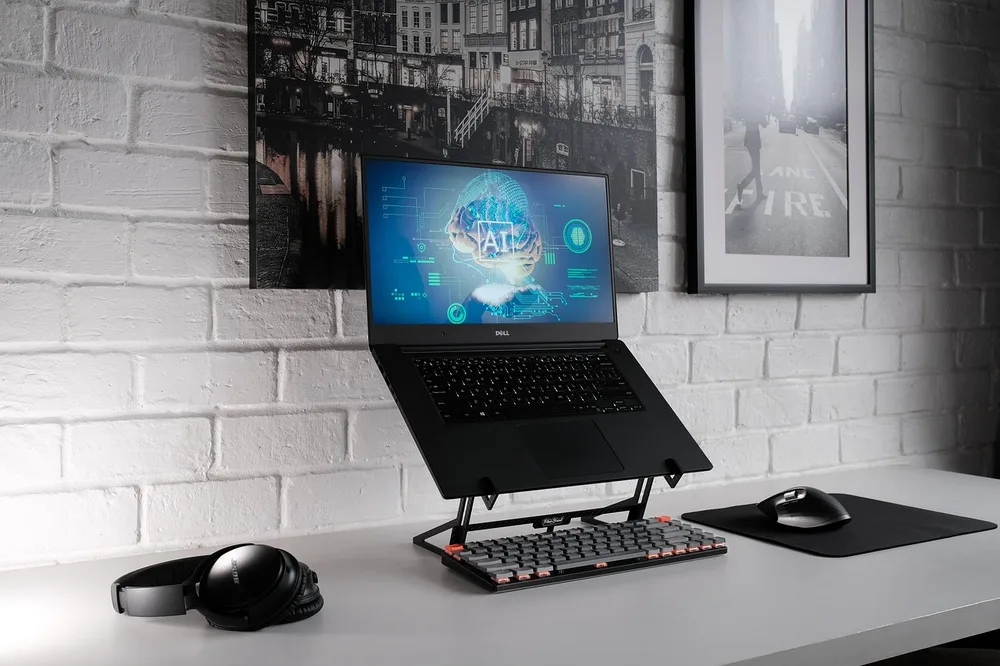
Laptops force a compromise: when the keyboard is at the right height, the screen is far too low. If you work on a laptop for hours, raise it on a stand so the screen reaches eye level, then add a separate keyboard and mouse so your hands stay at a comfortable height.
This combination turns a laptop into a proper workstation for very little money. Folding stands are light enough to carry in a bag, which helps if you move between home, the office and a coffee shop. Keep the laptop centered in front of you rather than off to one side.
8. Add a Footrest if Your Feet Do Not Reach

Most desks are made for an average height, so shorter people often raise the chair to reach the keyboard and end up with dangling feet. A footrest gives your legs a stable base, takes pressure off your thighs and makes it much easier to sit back against the chair.
Adjustable or angled footrests let you change position through the day, which is good for circulation. A sturdy box or a stack of thick books works as a free test. Make sure it is wide enough to move your feet around rather than keeping them fixed in one spot.
9. Light the Desk Without Glare
Glare on the screen makes you squint and lean in without noticing. Place the desk so windows are to the side of the monitor rather than directly behind it or behind you, and use blinds or sheer curtains to soften strong sunlight during the brightest part of the day.
Add a desk lamp for paperwork, aimed at the desk surface rather than the screen. A monitor light bar is a neat option because it lights the desk without reflecting on the display. Keep the room lighting reasonably close to the screen brightness to reduce eye fatigue.
10. Change Position Through the Day

Even a perfect setup becomes uncomfortable if you stay frozen in one position for hours. Stand up, stretch and look away from the screen regularly; a simple timer every thirty to forty five minutes is enough of a reminder to move and reset your posture.
A sit stand desk or a desktop converter makes switching easier, but alternating between sitting and standing matters more than standing all day. Take calls on your feet, refill your water often and walk during short breaks. Movement is part of an ergonomic setup, not separate from it.
Final Thoughts
An ergonomic desk setup is mostly about small adjustments: screen at eye level, feet supported, elbows relaxed and the mouse close by. Fix the monitor and chair first, since they make the biggest difference, then work through the rest of the list and keep moving during the day.