10 Dual Monitor Setup Ideas for a Smarter, More Productive Desk
Two monitors can make work faster, but a poor layout leaves you turning your neck all day and hunting for windows. The difference is in height, angle and how you divide the work between screens.
These dual monitor setup ideas cover the physical arrangement first, then the small settings and habits that make two screens feel like one comfortable workspace.
1. Decide Which Screen Is the Main One
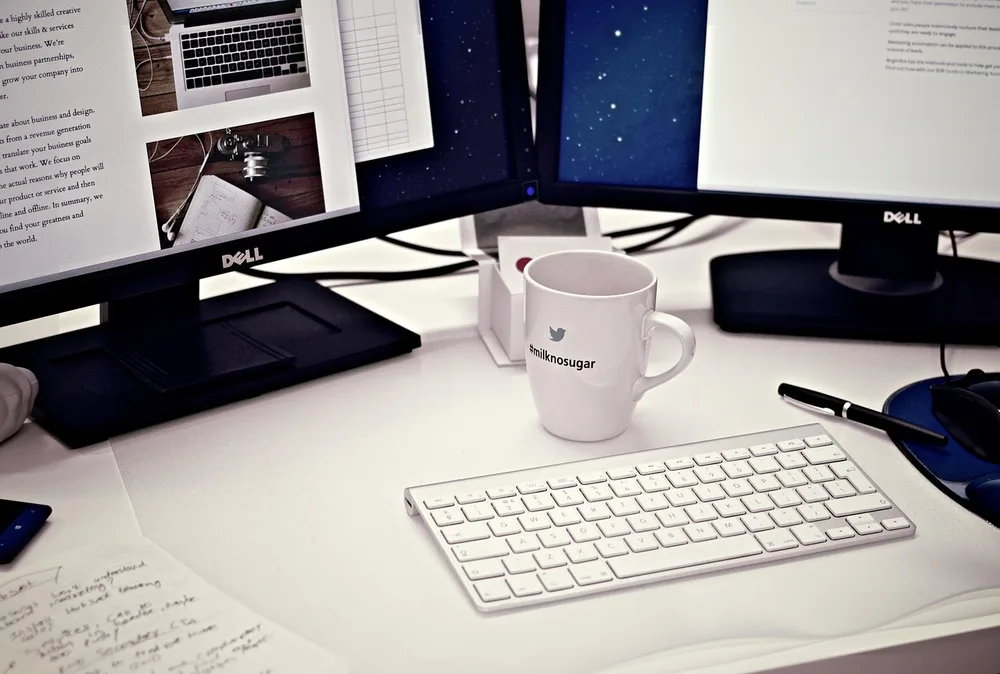
Most people spend most of their time on one screen and only glance at the other. Decide which monitor is the primary one, usually the larger or sharper display, and use the second one for reference material, chat, email or tools you check now and then rather than stare at all day.
This choice shapes everything else, from where each screen sits to which one gets the taskbar and the dock. A clear main screen keeps your head centered for most of the day, while the secondary screen supports your work without pulling your neck to the side for hours at a time.
2. Line Up the Heights and Top Edges
Screens at different heights force your eyes to jump and your neck to tilt every time you look from one to the other. Align the top edges of both monitors at or slightly below eye level, even if the screens are different sizes or come from different brands with different stands.
Monitor arms or simple risers make this alignment easy. Once the top edges line up, moving the mouse between the screens feels smooth instead of jarring, and your eyes travel in a straight line, which reduces fatigue over a long workday spent switching between windows.
3. Angle the Screens in a Gentle Curve
Place the screens so they form a shallow curve around you, with each one facing your eyes directly. Flat side-by-side screens leave the outer edges at a sharp angle, which makes text there harder to read and forces you to lean or turn your whole body to see it clearly.
If you use both screens equally, center the seam between them right in front of you. If one screen is primary, center that one in front of the keyboard and angle the other toward you at its side, like a wing, so it is easy to glance at without turning.
4. Try the Second Screen in Portrait
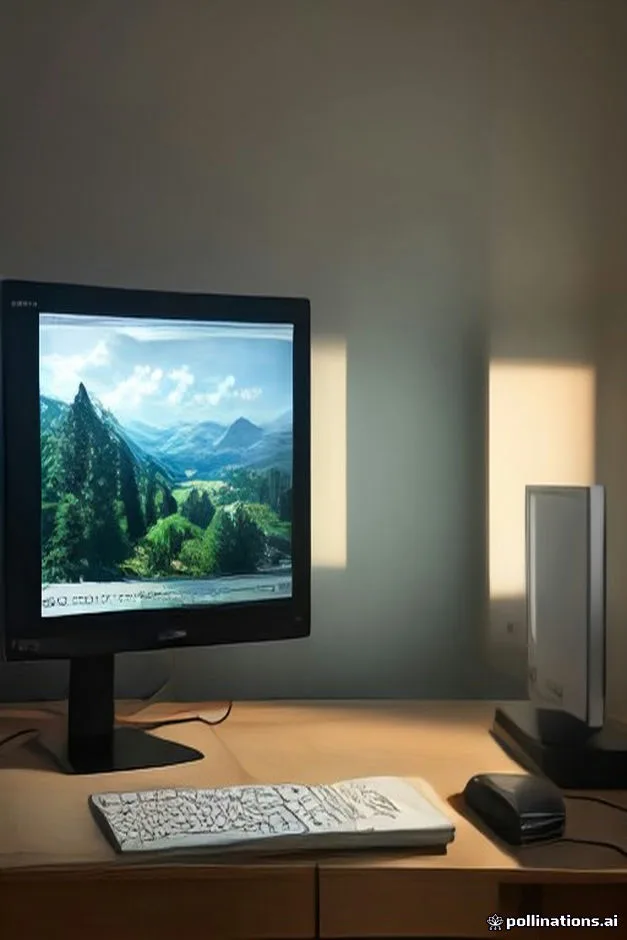
Rotating the secondary monitor to portrait mode is ideal for long documents, code, chat windows and web pages. You see far more lines at once, scroll much less and can keep an entire article or a long conversation visible while you work on the main screen beside it.
Put the portrait screen on the side you glance at least, and make sure its stand or arm supports rotation before you try it. Many people find this layout more useful than two wide screens, especially for writing, research and programming work that involves a lot of reading.
5. Use a Dual Monitor Arm
A dual monitor arm holds both screens on a single clamp, freeing all the space taken by two separate stands. It also lets you adjust height, angle and depth independently for each screen, which makes the alignment and curve described above much easier to achieve and to keep.
Check the weight limit and screen size range before buying, and make sure your desk edge is thick and sturdy enough for a clamp. The freed space under the screens is perfect for a notebook, small speakers or simply a clear surface that makes the desk feel bigger.
6. Match Scaling Between Screens
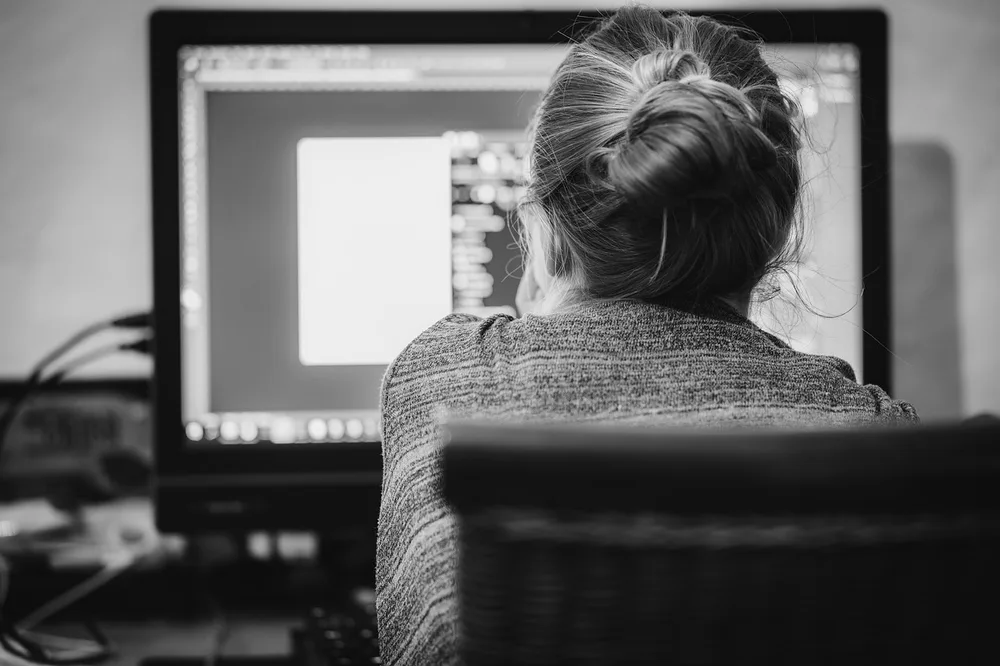
When two screens have different resolutions or sizes, windows can suddenly shrink or grow as you drag them from one to the other. Adjust the display scaling in your system settings so that text looks about the same size on both screens, even if the pixel counts are different.
This small setting reduces eye strain and makes dragging windows between screens feel natural and seamless. Check it again whenever you replace one of the monitors, update your operating system or connect a laptop, because the scaling can reset without warning.
7. Keep the Keyboard Centered on Your Work
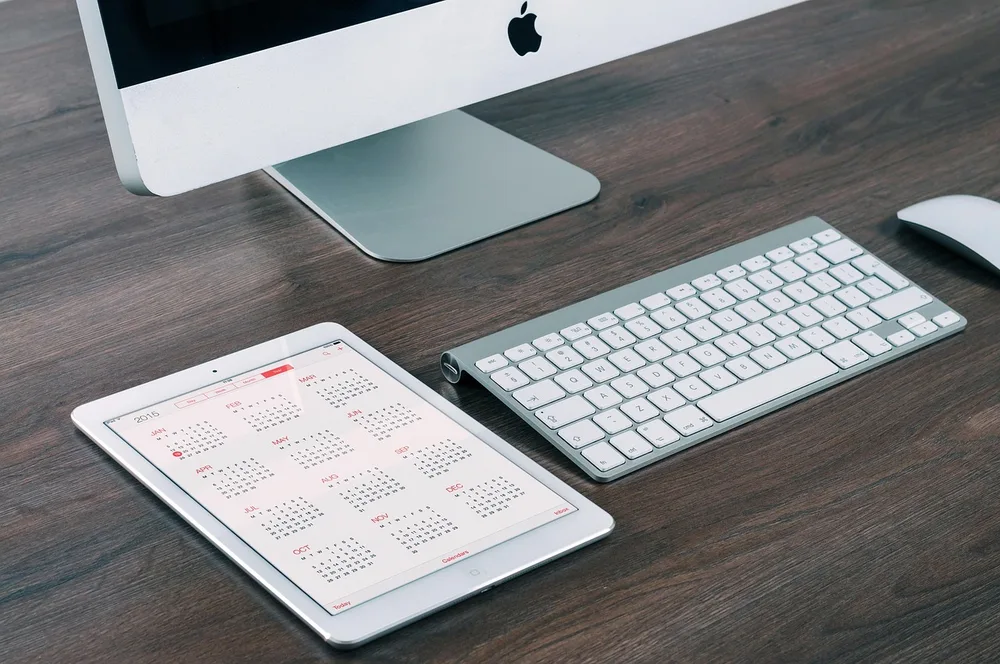
Your keyboard and chair should face the screen you use the most. Centering the keyboard between two screens when you mostly use one of them keeps your body slightly twisted all day long, which is easy to ignore at first but adds up to a stiff back and neck by evening.
If you split your work evenly between the screens, center the keyboard on the seam between them. If not, follow the main screen and simply slide the keyboard over when your task changes. It takes a second and keeps your posture straight for most of the day.
8. Add a Monitor Light Bar
A light bar mounted on top of the main monitor lights the desk without shining on the screen itself. With two monitors taking up the back of the desk, it is an easy way to light your keyboard and notes without adding a lamp that eats into the limited space that remains.
Choose a light bar with adjustable color temperature, cooler for focused daytime work and warmer for the evening. Being able to adjust it keeps the light comfortable through the whole day and helps the room feel less harsh after the sun goes down.
9. Route Both Display Cables Together
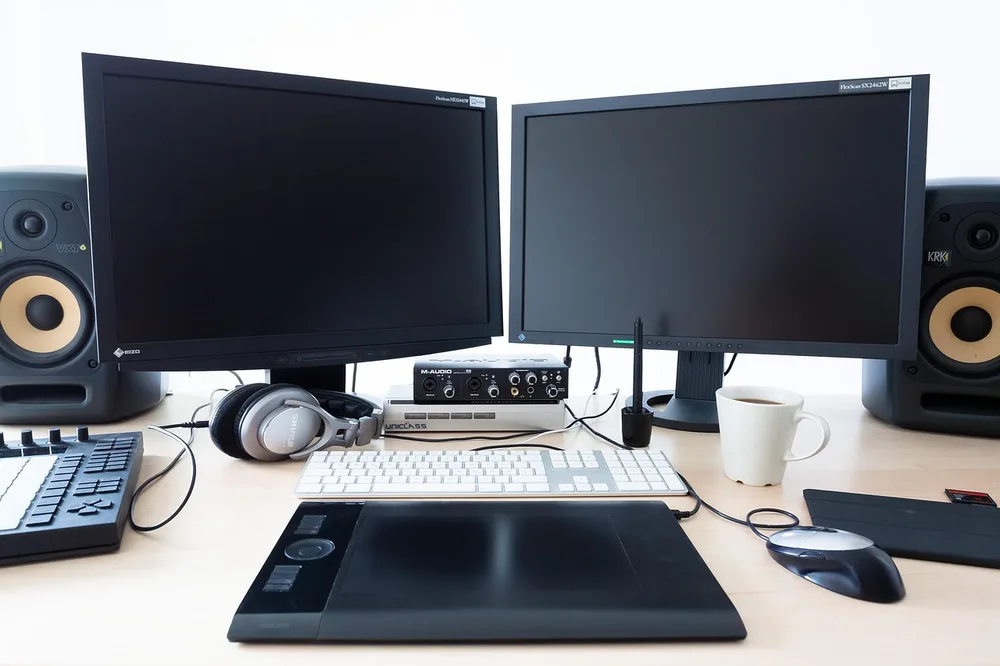
Two monitors double the cables behind the desk: two display cables and two power cables at a minimum. Route all of them together along the monitor arm or down one desk leg, and bundle them with reusable ties so they move as a single neat line instead of four loose ones.
Keeping them on the same path makes the back of the desk look intentional and tidy from every angle. It also makes it simple to trace a cable if one screen stops working, because you know exactly where each cable runs and where it connects.
10. Learn Window Snapping Shortcuts
Two screens are only faster if you can move windows between them quickly. Learn the keyboard shortcuts in your operating system for snapping windows to the left or right half of a screen and for moving a window from one display to the other without dragging it with the mouse.
Then set a routine layout, such as email and chat always on the secondary screen and your main task on the primary one. When every app has a fixed place, you stop searching for windows and start working right away, which is where the real productivity gain comes from.
Final Thoughts
A good dual monitor setup is about alignment and roles: a clear main screen, matching heights, a gentle curve and a few shortcuts. Fix the height and angle first, then add the arm and lighting when you are ready.